Creative Programming: Colour

Lecture 3 (10 Feb)

(Re)visiting slides?

You can jump to any slide with the menu to the (bottom) left.

Did you miss a slide or want to revisit? Open the narration tab while studying to get an explanation of difficult slides.
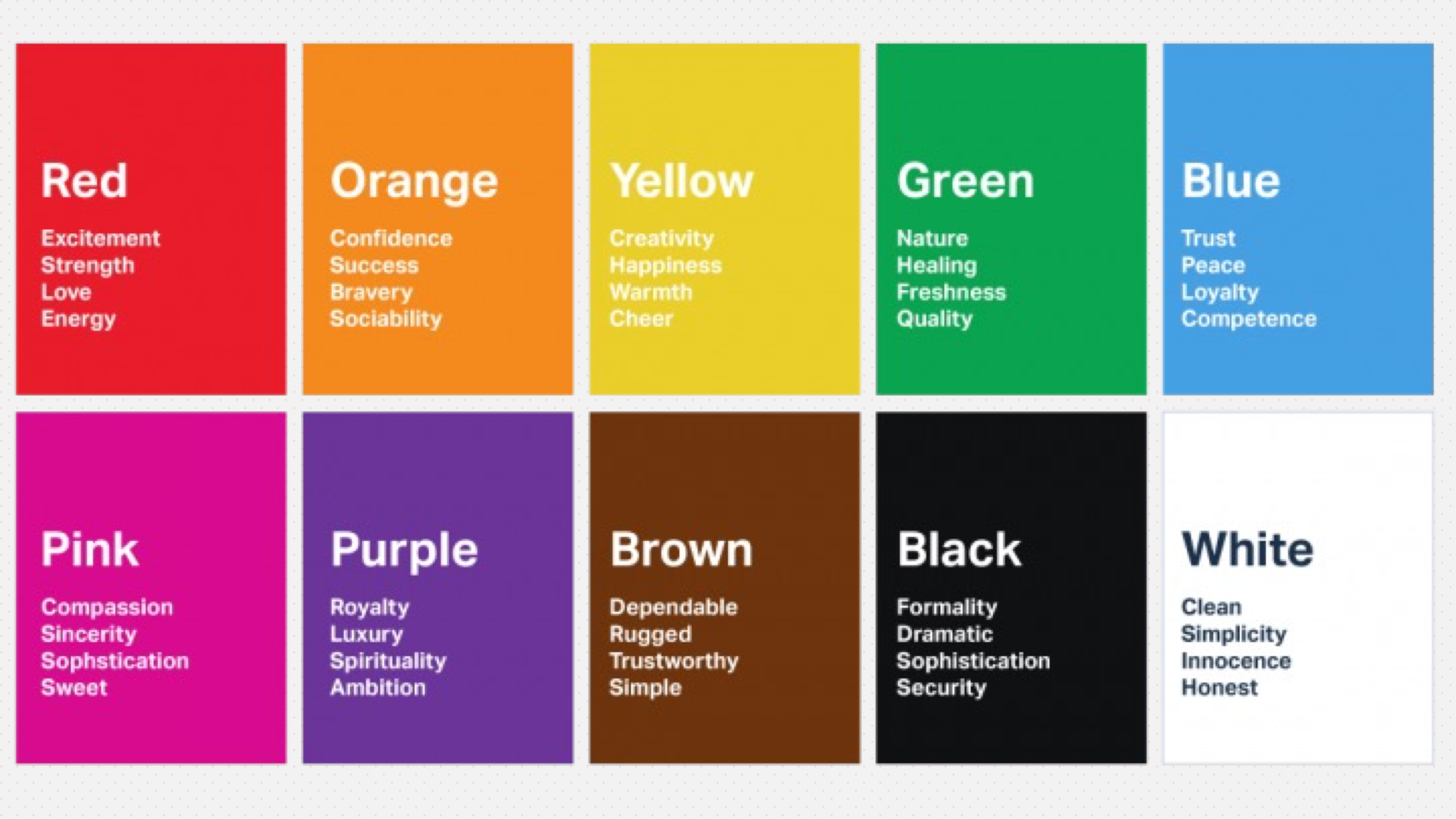
Our World in Colour

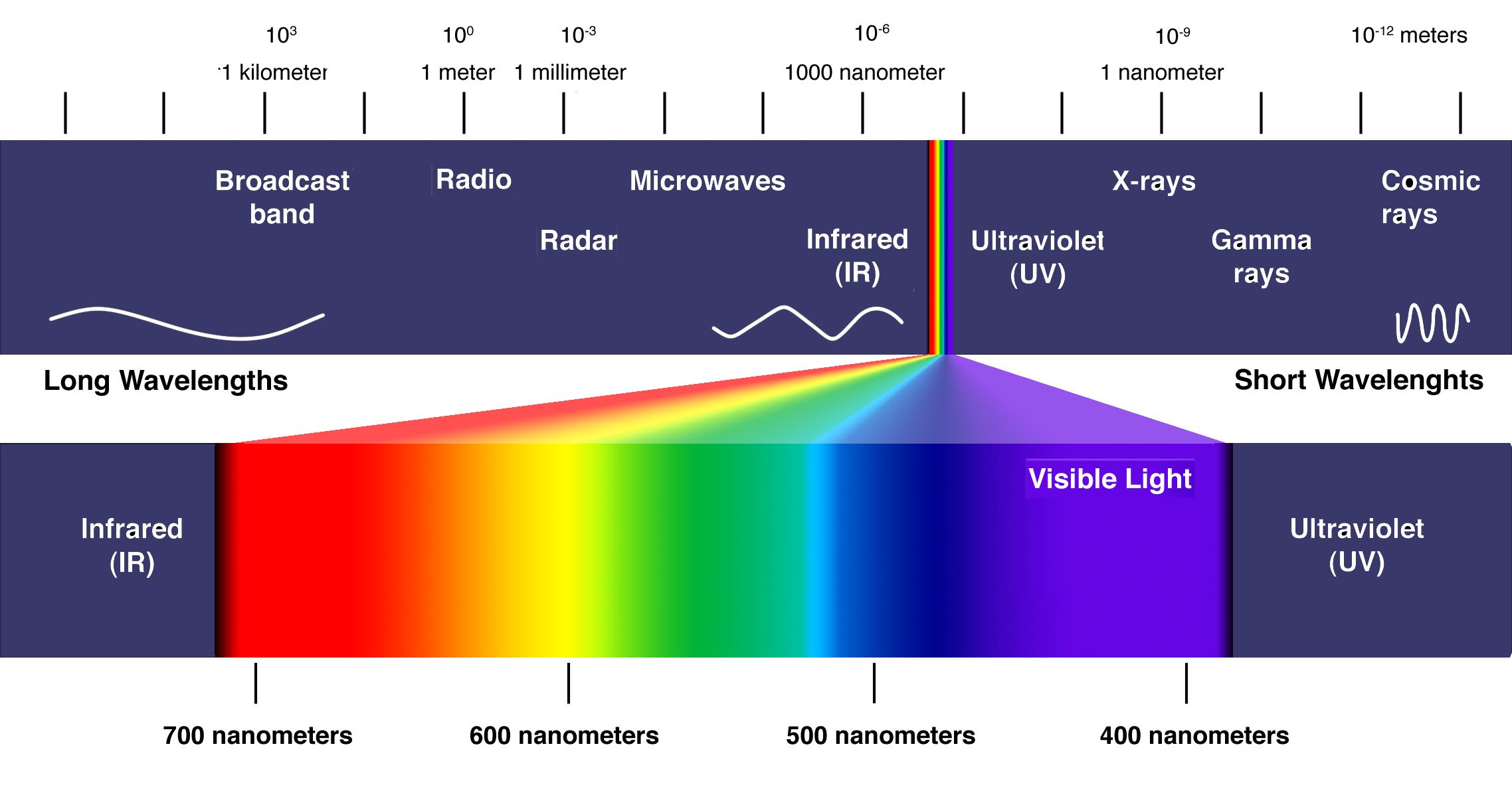
What is a colour?

The pattern behind colour names

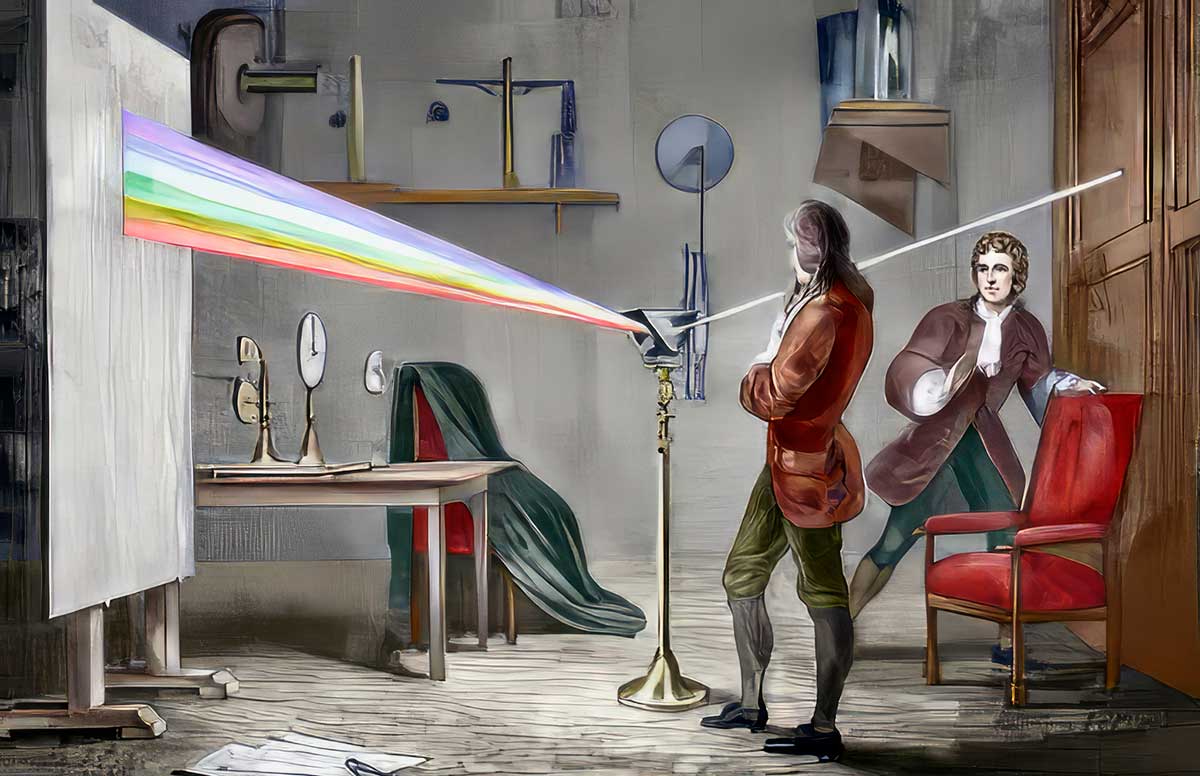
Newton

Colour in nature

Colour perception
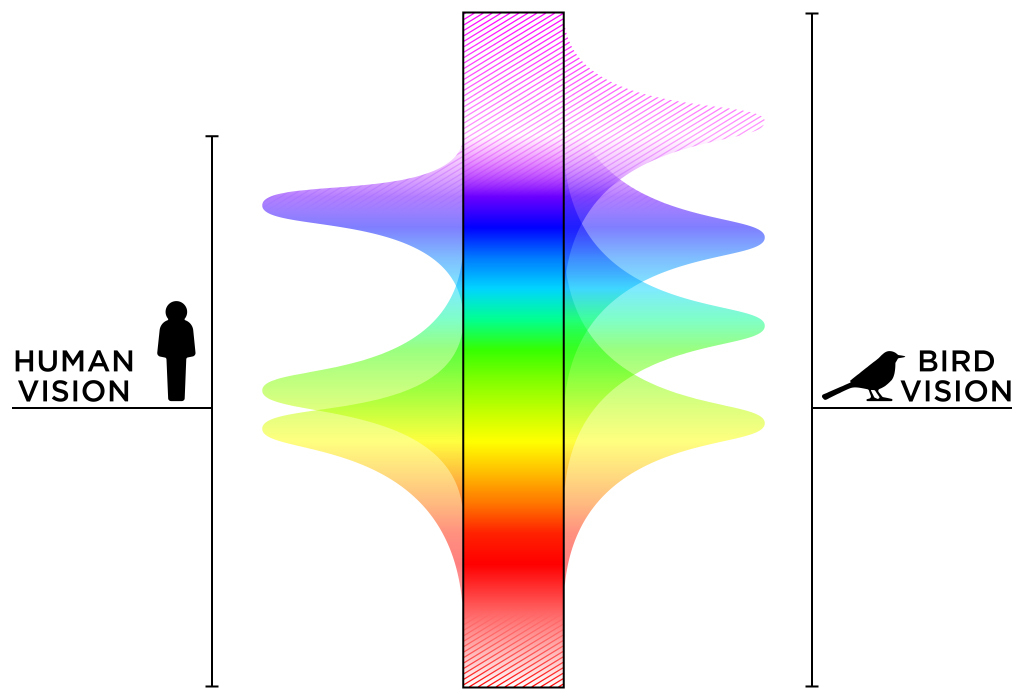
Bird vision
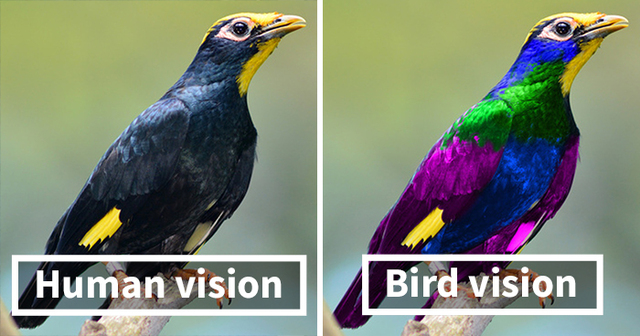
Bees and humans
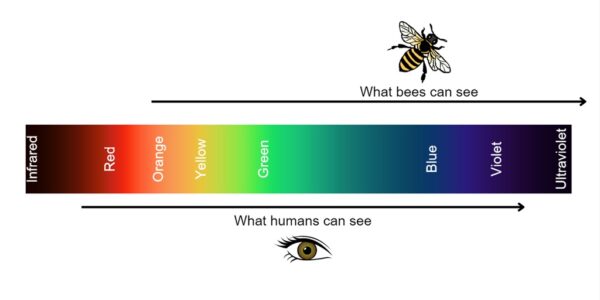
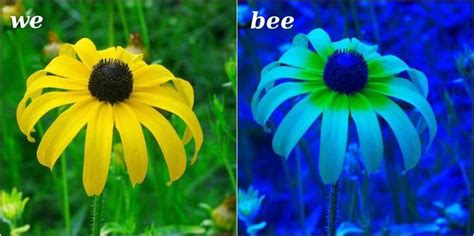
Bee vision
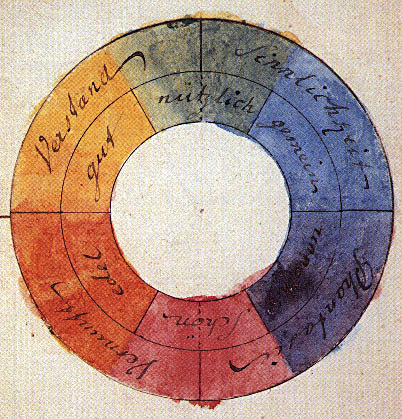
Categorising Colour: Goethe
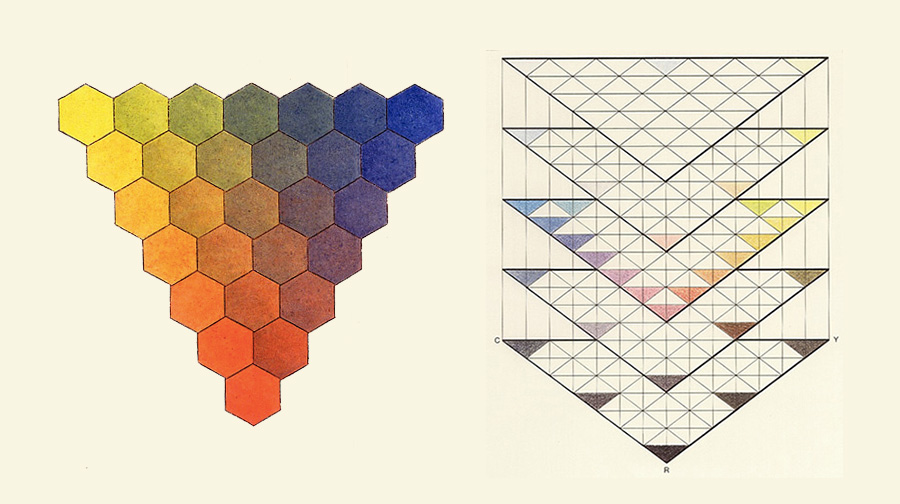
Categorising Colour: Tobias Mayer
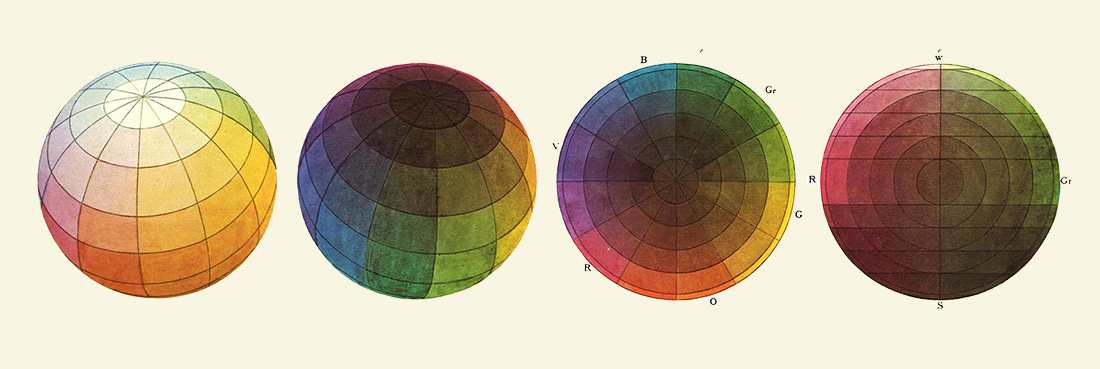
Categorising Colour: Philip Otto Runge
Categorising Colour: Michel Eugène Chevreul
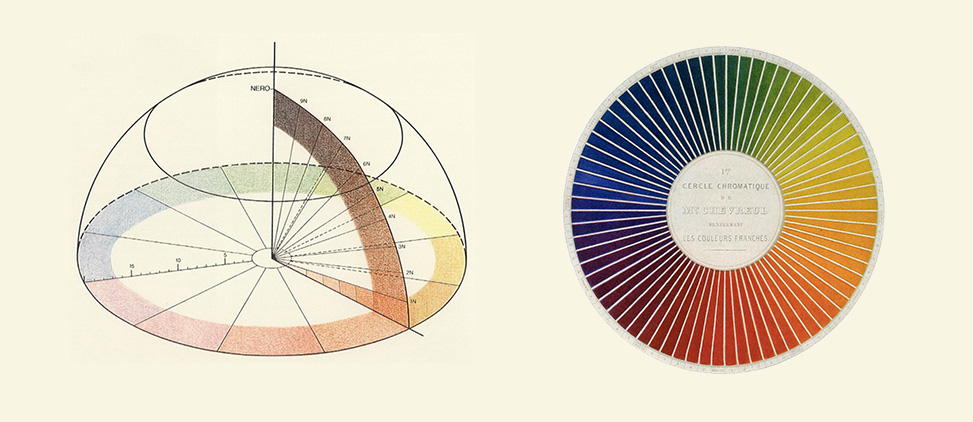
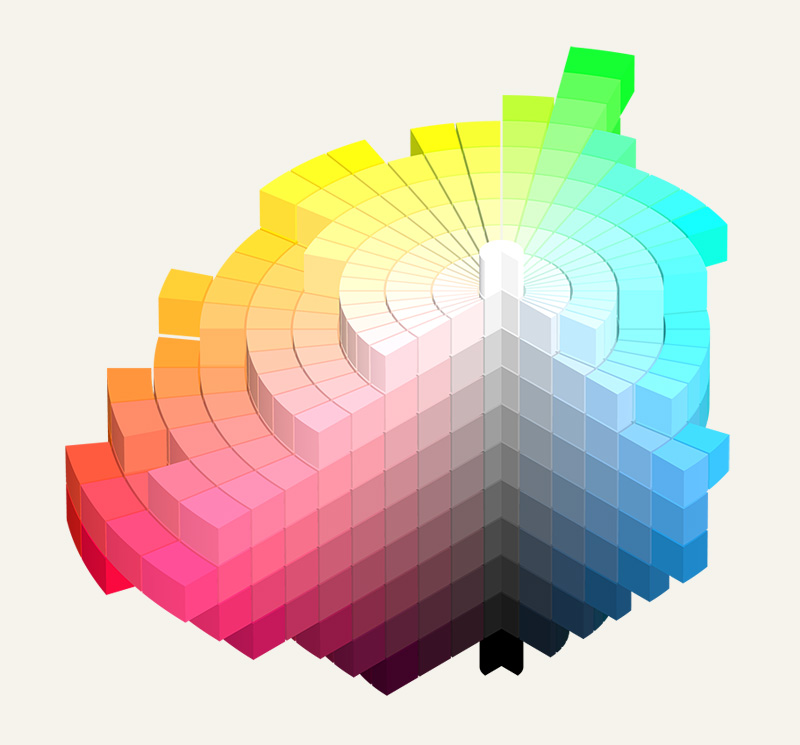
Categorising Colour: Albert Henry Munsell
Color For Computers (+ Recap)

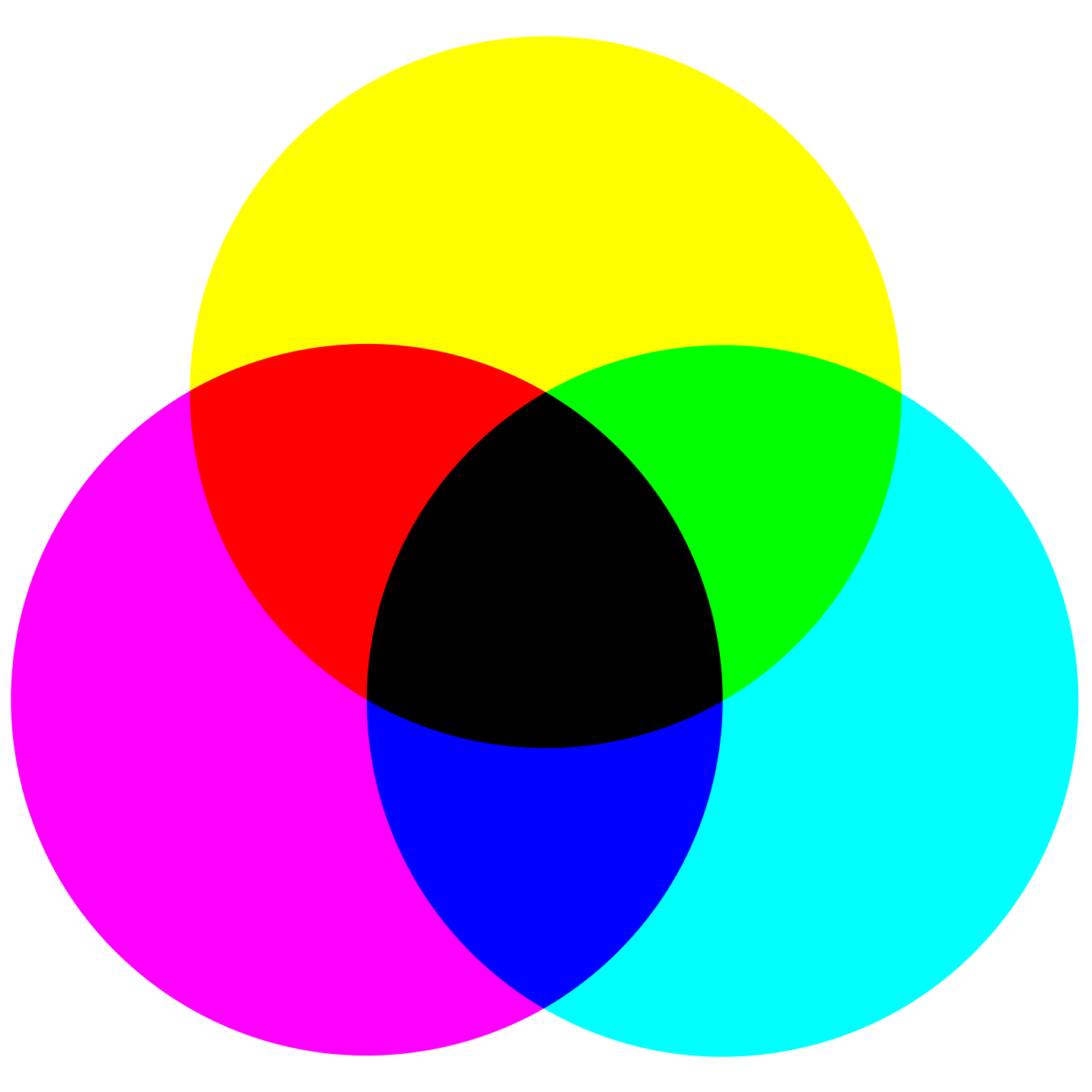
Subtractive and Additive

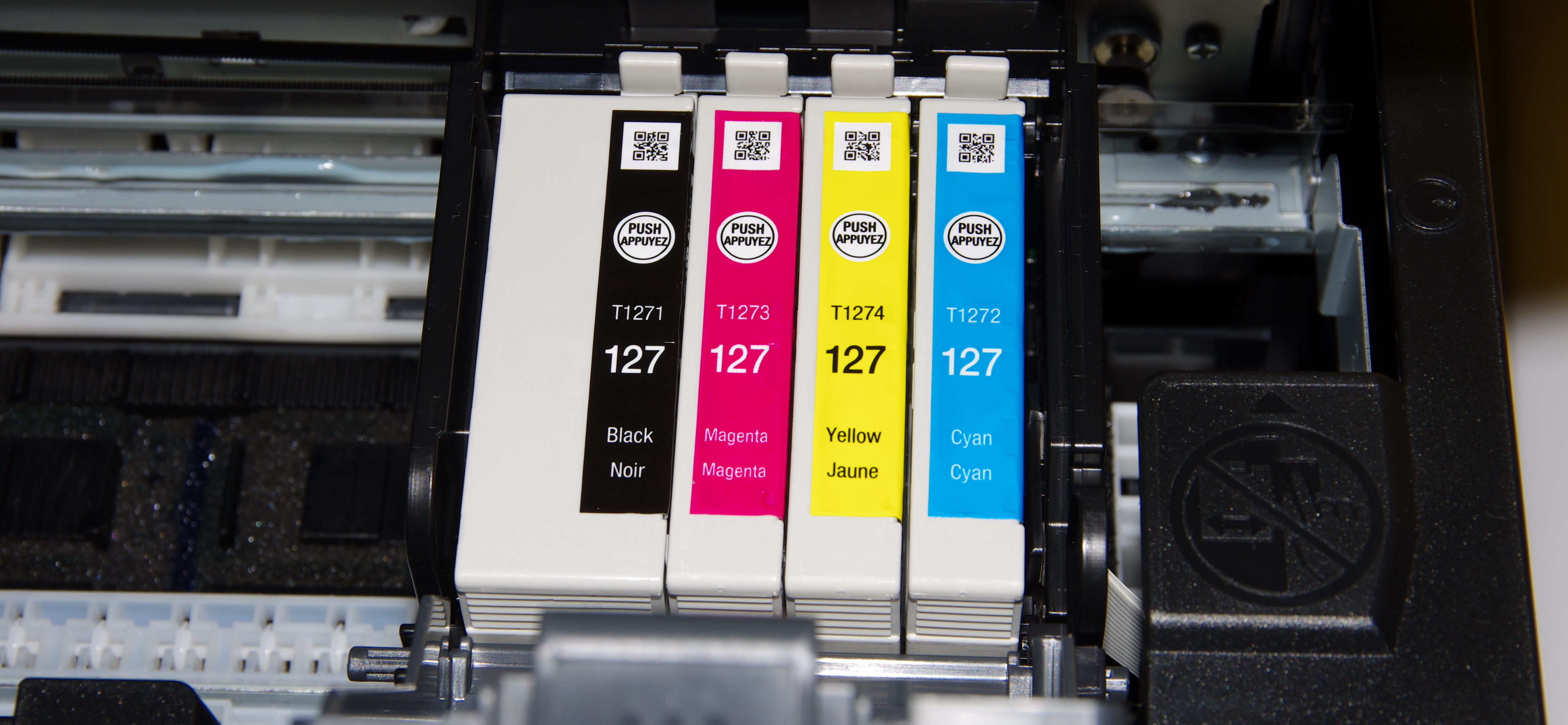
Subtractive

  • Color as it is perceived by light bouncing off of material
  • Wavelengths are absorbed by the material and reflected to the eye

Subtractive example: printing
Additive

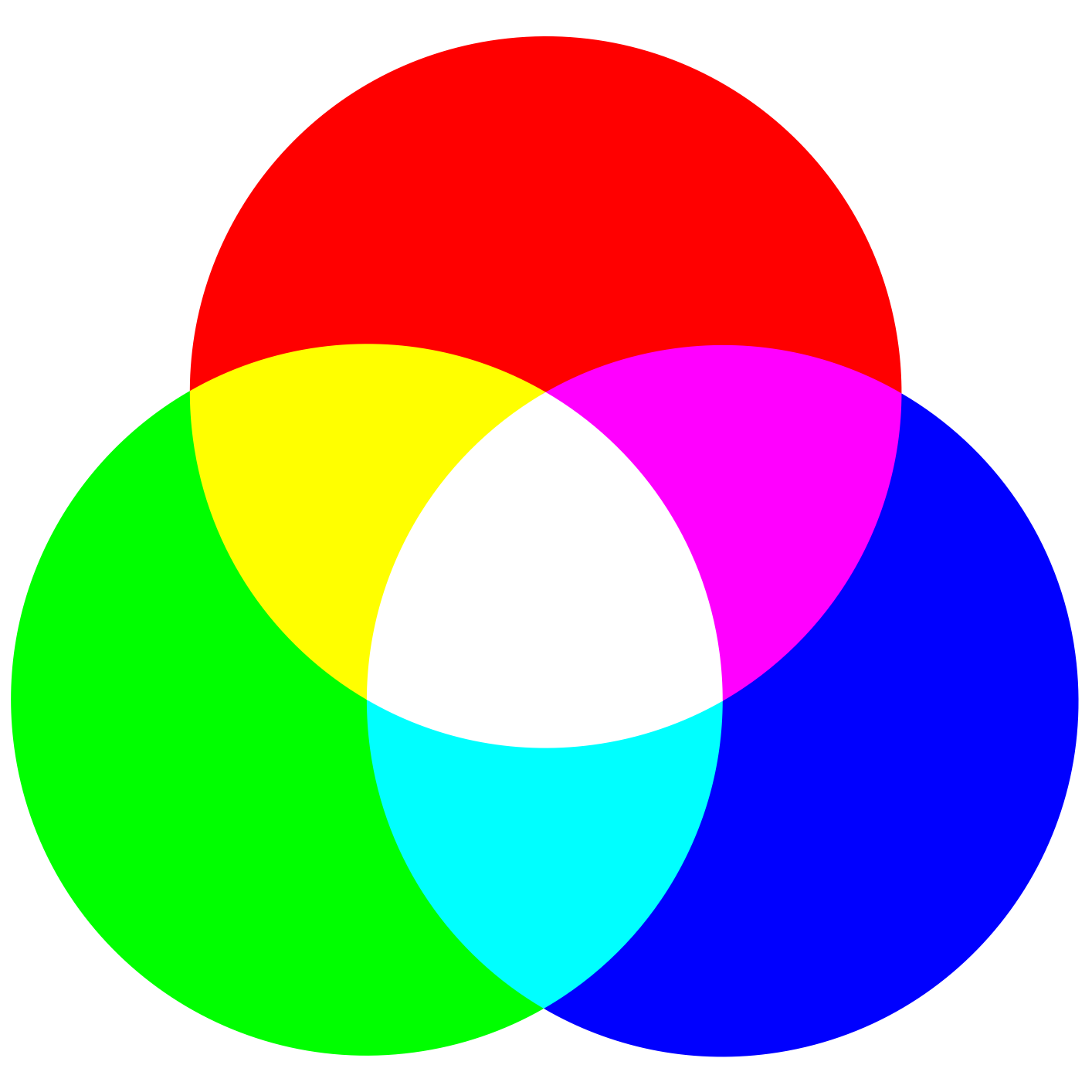
  • Color as it is perceived by light emitted from a source
  • Adding colors together increase the total visible wavelengths, making white

We have seen this before

  • High values make lighter colours
  • Low values make darker colours
  • Single argument gives greyscale colours
let white = color(255); // Creates a white colour
let black = color(0); // Creates a black colour
  • Previously, we directly wrote e.g. fill(255) to set the fill colour
  • NEW: color defines a color that we can store in a variable to use later

Red, Green, Blue

  • Colour model of early photography
  • Three numerical values represent the intensity of red, green, and blue light channels
let red = color(255, 0, 0); // Creates a red colour
let green = color(0, 255, 0); // Creates a green colour
let blue = color(0, 0, 255); // Creates a blue colour

let purple = color(134, 42, 200); // Creates a purple colour

RGB with direct numbers

  • Whenever a function needs a colour, we can specify the individual RGB values directly as arguments

RGB with variables

  • We can also use variables to store the RGB values, which allows us to change the colour dynamically

Arrays

  • Using arrays allows us to define a single variable to store our full palette of colours, which we can then access with an index

Loops

  • Loops can automatically iterate through our colour palette

Gradient

Class Assignment: Gradient

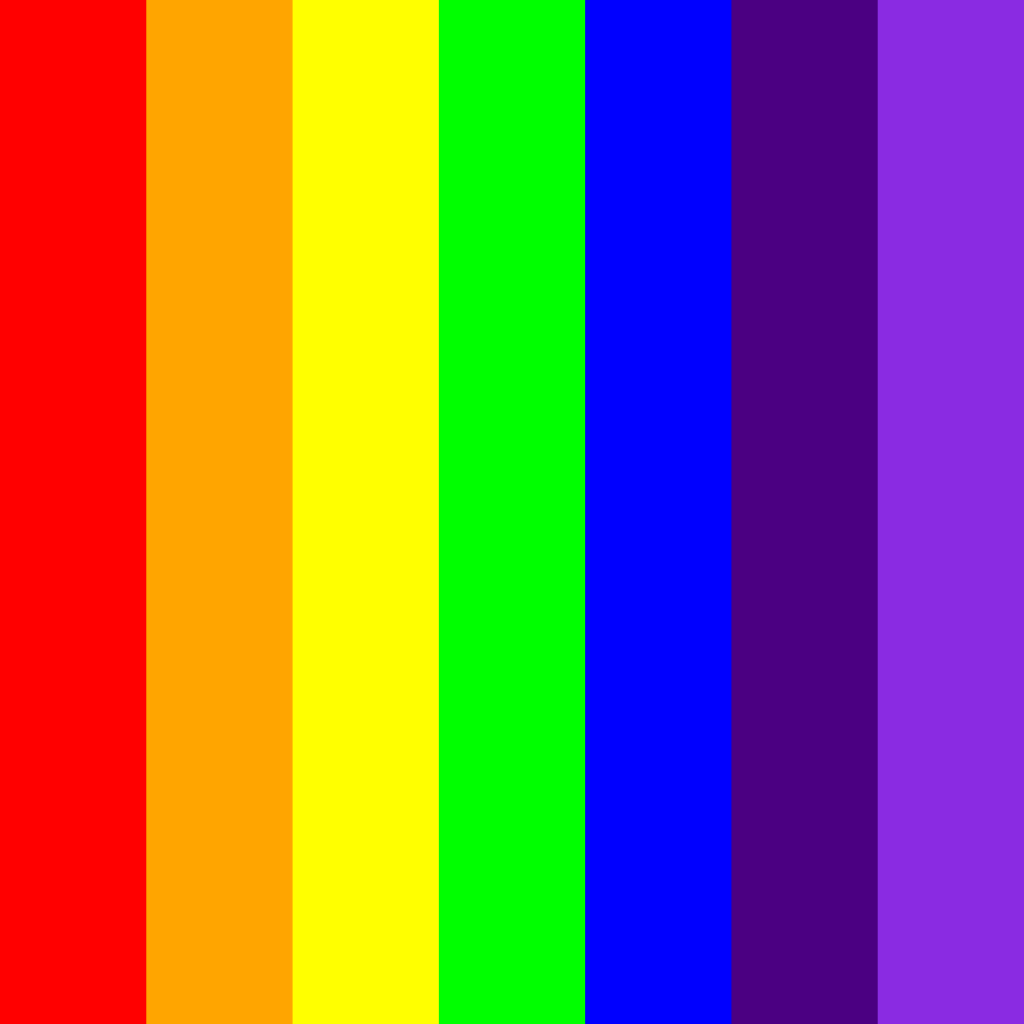
  1. With the help of the previous slides, create a sketch that draws a range of distinct colours (e.g. a rainbow)

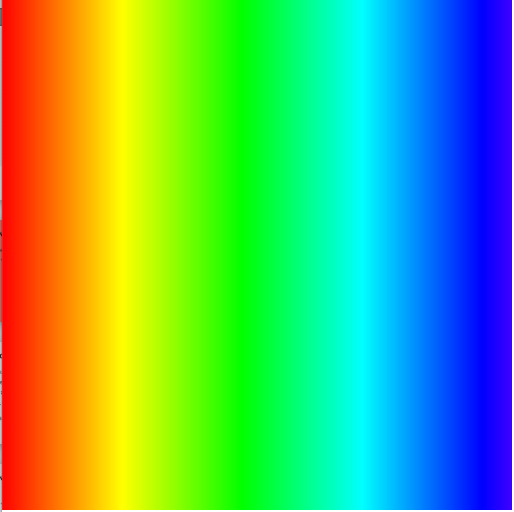
  2. Convert it to a continuous gradient by using loops to draw many rectangles with slightly different colours
Project Introduction

Project Introduction

  • We will now introduce the project
  • The description, groups, and rubric can be found on LearnIT

More Colour

Using RGB 1

  • There are a few ways to invoke RGB in p5.js
  • One of them is to use three numbers from 0-255
let red = color(255, 0, 0); // Creates a red colour
let green = color(0, 255, 0); // Creates a green colour
let blue = color(0, 0, 255); // Creates a blue colour

let purple = color(134, 42, 200); // Creates a purple colour

Using RGB 2

  • You may have seen hexadecimal colours in other software, e.g. Photoshop
  • Hexadecimal codes use three groups (R-G-B) of 2 characters in a string
    • 0 is the lowest, F is the highest
let red = color('#FF0000'); // Creates a red colour
let green = color('#00FF00'); // Creates a green colour
let blue = color('#0000FF'); // Creates a blue colour

let purple = color('#862ac8'); // Creates a purple colour

Using RGB 3

  • p5js also support colour names
  • Directly use a (supported) colour name when declaring a colour
let red = color('red'); // Creates a red colour
let green = color('green'); // Creates a green colour
let blue = color('blue'); // Creates a blue colour

let purple = color('purple'); // Creates a purple colour

The fourth value: alpha

  • RGB can also have a fourth value, called alpha
  • Alpha controls the transparency, where 0 is fully transparent and 255 is fully opaque
  • These transparent colours are useful for layering and blending effects
let transparentRed = color(255, 0, 0, 127); // Creates a semi-transparent red colour
let transparentGreen = color(0, 255, 0, 200); // Creates a slightly transparent green colour
let transparentBlue = color(0, 0, 255, 50); // Creates a very transparent blue colour

let transparentPurple = color(134, 42, 200, 100); // Creates a semi-transparent purple colour

Alpha Example

  • In this example we draw multiple shapes with different alpha values to show how they blend together

Adding imagery

  • So far we have only used shapes to create our drawings
  • We can add images to p5js as long as we can tell p5js where to find them
    • We can load images from an url ("https://...")
    • Or from local files, in the same folder as our sketch ("imageName.png")

Loading images

  • To load an image, we can use the loadImage function, which takes the path to the image as an argument and returns a p5 image object
  • We have to load the image in the preload function, which is similar to setup but is specifically designed for loading files before the sketch starts
  • We can then use the image function to draw the image on the canvas, specifying the position and size

Image Example

  • In this example we load an image of a cat and draw it on the canvas

Tinting

  • We can apply what we have learned about colours to images
  • tint applies a filter to the image, changing its colour and/or transparency

Revisiting old drawings

Class Assignment: Alpha

  1. Go through your old sketches and add a fourth alpha value to your colours to make them transparent
  2. Replace a rectangle with an image, and make it transparent using tint
  3. Experiment with different alpha values to see how it affects the appearance of your drawings, especially when layering multiple shapes on top of each other

Drawing Angles

Straight rectangles

  • So far we have only drawn straight shapes and images
  • We have always used the top-left corner as the reference point for positioning our shapes and images
  • How can we draw ‘angled’ shapes and images, i.e. rotated?

Translation

  • We can use the translate function to change the origin point
  • This allows us to position our shapes and images relative to a different point on the canvas

Offset coordinates

  • Be careful when using translate, as it changes the coordinate system
  • The coordinate system will reset at the end of the draw function
  • You have to put the translate at the start of the draw function if you want to apply it every time

Offset coordinates

  • mouseX and mouseY give the position of the mouse relative to the original coordinate system, not the translated one
  • You need to subtract the extra translation from the mouse coordinates to get the correct position in the translated coordinate system

Rotation

  • We can use the rotate function to rotate around the origin point
  • As with translate, the rotation will affect everything after it
  • We need to set angleMode to DEGREES if we want to use degrees

Rotate and draw

  • As with translate, the rotation resets at the end of the draw function
  • We can get a spinning effect if every draw we rotate a bit more (e.g. using frameCount)

Symmetry

Symmetry in programming

  • If we repeat our draw code multiple times with different translations/rotations, we can create symmetrical patterns
  • Place your draw code in a for-loop to automatically repeat it

Drawing with symmetry

Class Assignment: Symmetry

  1. Set the origin to the center of the canvas and draw some simple shapes in one direction.
  2. Use a for-loop to repeat the same shapes in different directions by applying different rotations. Try to create a symmetrical pattern.

Chasing the mouse

  • pmouseX and pmouseY give the previous position of the mouse (pmouse as in previous mouse)
  • By not refreshing the background we can create a trail effect that follows the mouse

Mandala

  • By combining symmetry and mouse trails we can create a mandala effect

Further transformations

  • We can also use scale to change the size of our shapes and images
  • shearX and shearY create slanting effects
  • push() and pop() allow us to save and restore the state, which is useful for applying transformations to specific parts of our drawing without affecting the rest
  • All transformations can be combined to create complex effects, but be careful with the order of transformations as they affect each other

Exercise 2

  • Exercise 2 is all about drawing with colour and transformations.
  • Good luck!